
# PhotoQ AI Assistant
PhotoQ is the PhotosynQ AI Assistant. It can help with PhotosynQ instruments, field protocols, Project and measurement workflows, troubleshooting, and best practices.
PhotoQ access is separate from the main PhotosynQ app sign-in and is limited to approved PhotoQ users. An internet connection and access to the approved email inbox are required.
# Open PhotoQ
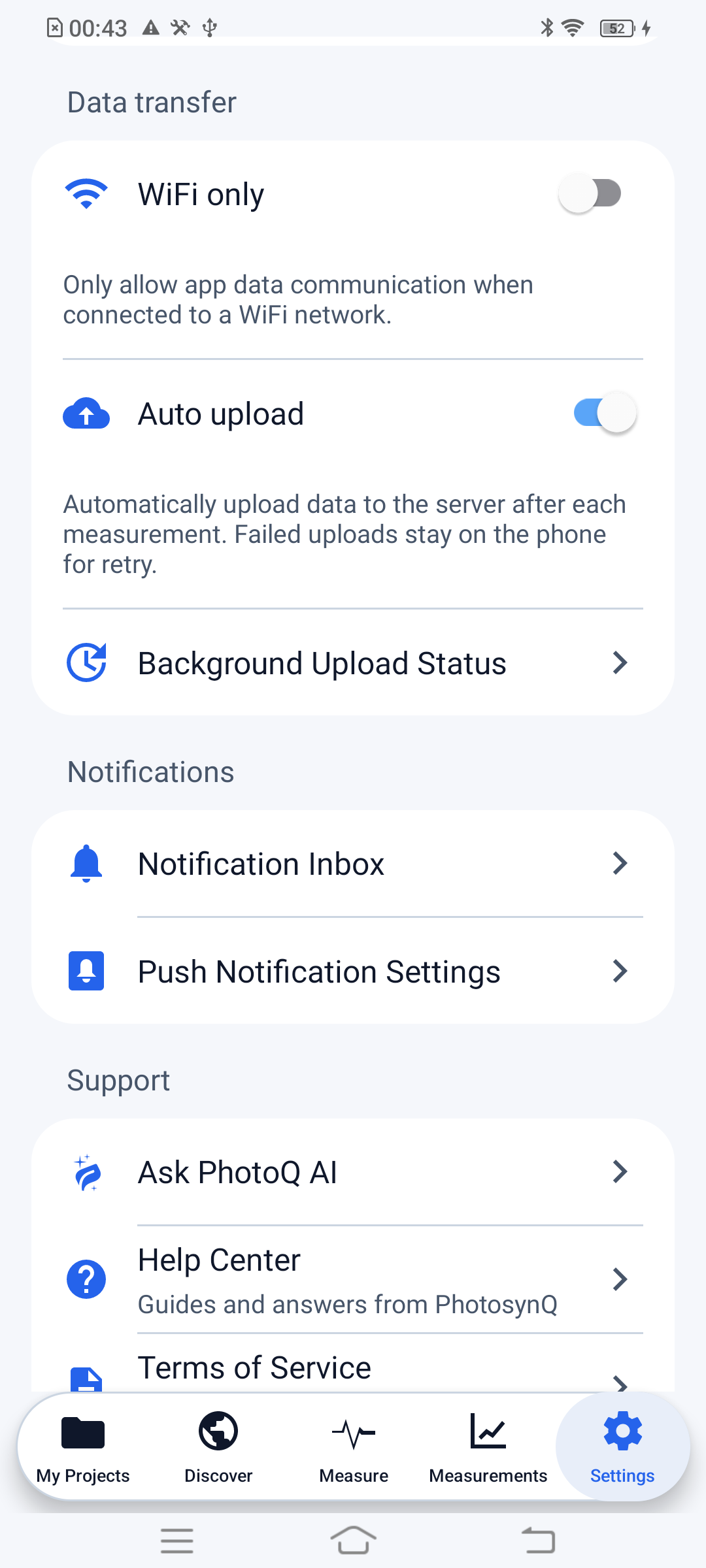
- Open Settings in the bottom navigation and scroll to Support.
- Select Ask PhotoQ AI.
- Review the introductory information and scroll to Sign in to PhotoQ.
# Sign in
- Enter the work email approved for PhotoQ access.
- Select Send passcode.
- Open the email from PhotoQ and enter its one-time passcode.
- Continue to the chat screen.
The PhotoQ passcode is not the same as the seven-character code used when signing in to the PhotosynQ platform.
If the email is not approved, use Request it here or contact the organization that manages PhotoQ access.
# Ask a question
Enter a focused question describing the instrument, protocol, Project, or symptom. Include relevant device model, firmware, protocol name, error message, and what occurred immediately before the problem. Do not include passwords, passcodes, or sensitive participant information.
PhotoQ can make mistakes. Verify important scientific, calibration, safety, and data-management guidance against the protocol owner, PhotosynQ documentation, or support before acting on it.
# Troubleshooting
- Confirm that the phone has internet access.
- Confirm that the email matches the address approved for PhotoQ.
- Check spam or junk mail when a passcode does not arrive.
- Request a new passcode if the previous one has expired.
- Reopen PhotoQ and sign in again if its session has expired.