
# PhotoQ AI Assistant
PhotoQ is available from the Desktop application's left menu. Approved users can ask for help with PhotosynQ Projects, protocols, measurements, instruments, and collection workflows without leaving the app.
PhotoQ requires an internet connection and a separately approved PhotoQ account. Its passcode flow is independent from the PhotosynQ platform password and seven-character sign-in verification code.
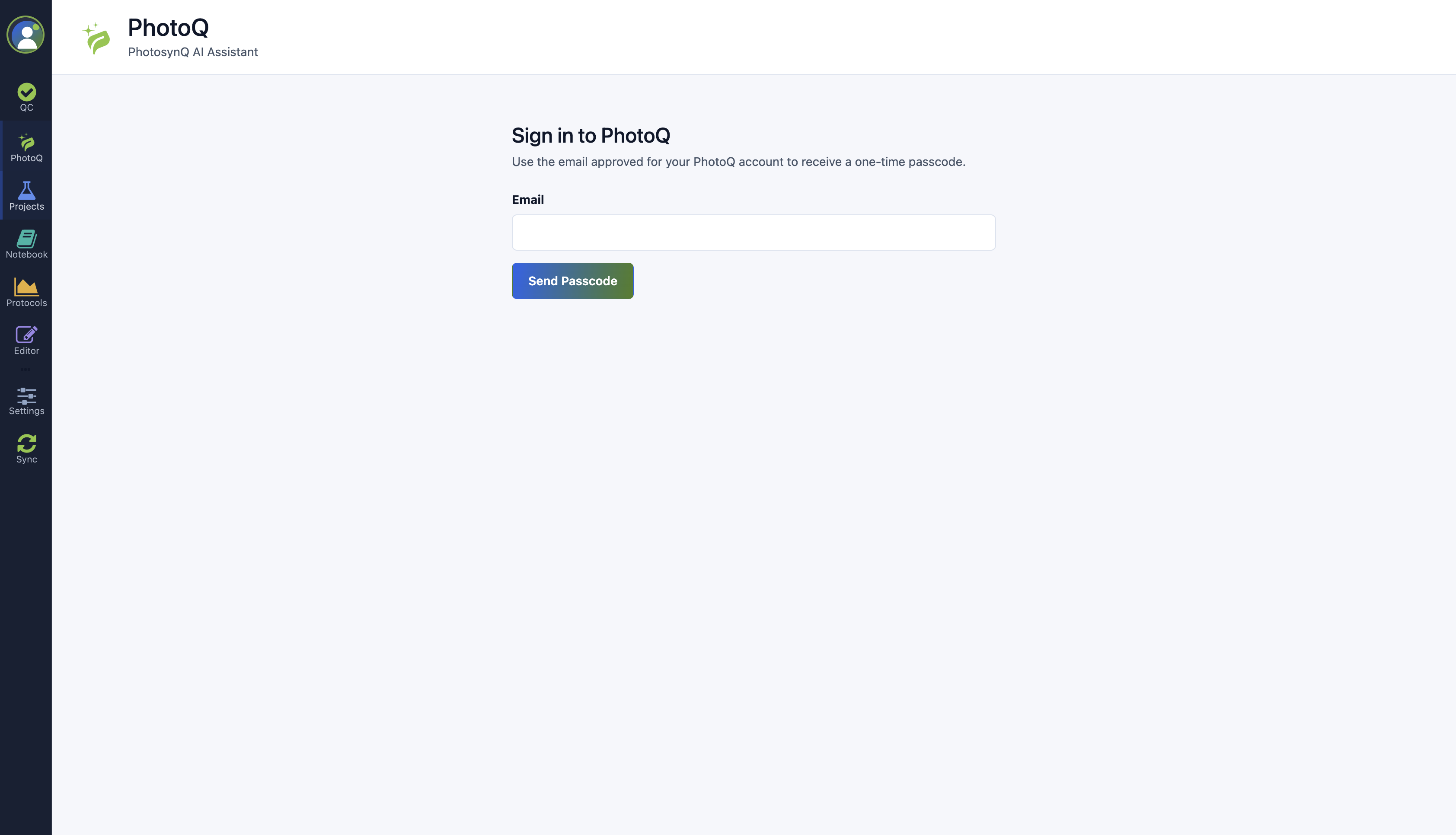
# Sign in to PhotoQ
- Select PhotoQ from the left menu.
- Enter the email approved for the PhotoQ account.
- Select Send Passcode.
- Enter the six-digit passcode sent by email.
- Select Continue.
Use Resend Passcode when a new code is required.
# Use the assistant
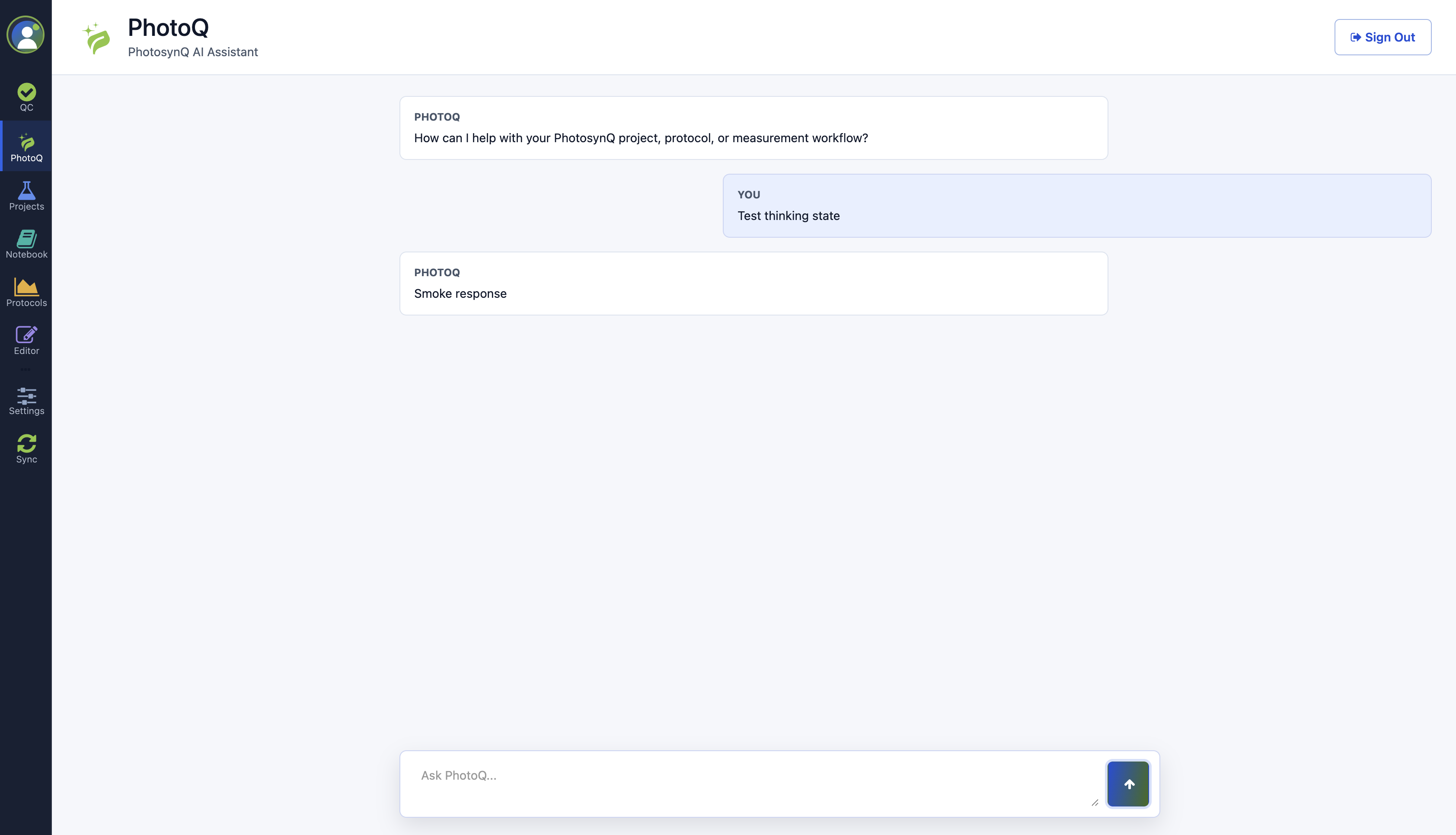
- Enter a focused question in Ask PhotoQ.
- Select the send arrow.
- Keep the application open while the Thinking indicator is displayed.
- Review the response and ask a follow-up question when more context is needed.
The assistant includes recent messages as context for follow-up questions in the current conversation.
Do not enter passwords, passcodes, or sensitive participant information. PhotoQ can make mistakes, so verify important scientific, calibration, safety, and data-management guidance before acting on it.
Select Sign Out in the upper-right corner to clear the local PhotoQ session and conversation from the application.
# Troubleshooting
- Confirm that the computer can reach the internet.
- Use the exact email approved for PhotoQ access.
- Check spam or junk mail if the passcode does not arrive.
- Request another passcode if the first has expired.
- If PhotoQ reports that the session expired, request a new passcode and sign in again.