
# Data Analysis
PhotosynQ provides a Data Explorer in the Desktop application and on the website for inspecting, filtering, plotting, mapping, summarizing, and exporting Project measurements. We recommend PhotosynQ Desktop for the best experience exploring and downloading data. Use the Explorer first to verify data completeness and quality. Use R, Python, or another statistical environment when the planned analysis requires models beyond the exploratory tools.
# 1. Confirm the Dataset
In PhotosynQ Desktop, open Projects, select the Project under My Projects, and choose Explore Project Data. Alternatively, open the Project on the website and select View Data. The dashboard and spreadsheet screenshots in this guide show Desktop; the remaining examples show the web interface. Before analysis, confirm:
- The number of uploaded measurements matches the collection log
- Required treatments, blocks, samples, dates, users, devices, and locations are present
- Project Question answers use consistent spelling, units, and categories
- Pending uploads, duplicates, and obvious identification errors have been resolved
- Warning-bearing and flagged records have been reviewed according to the study plan
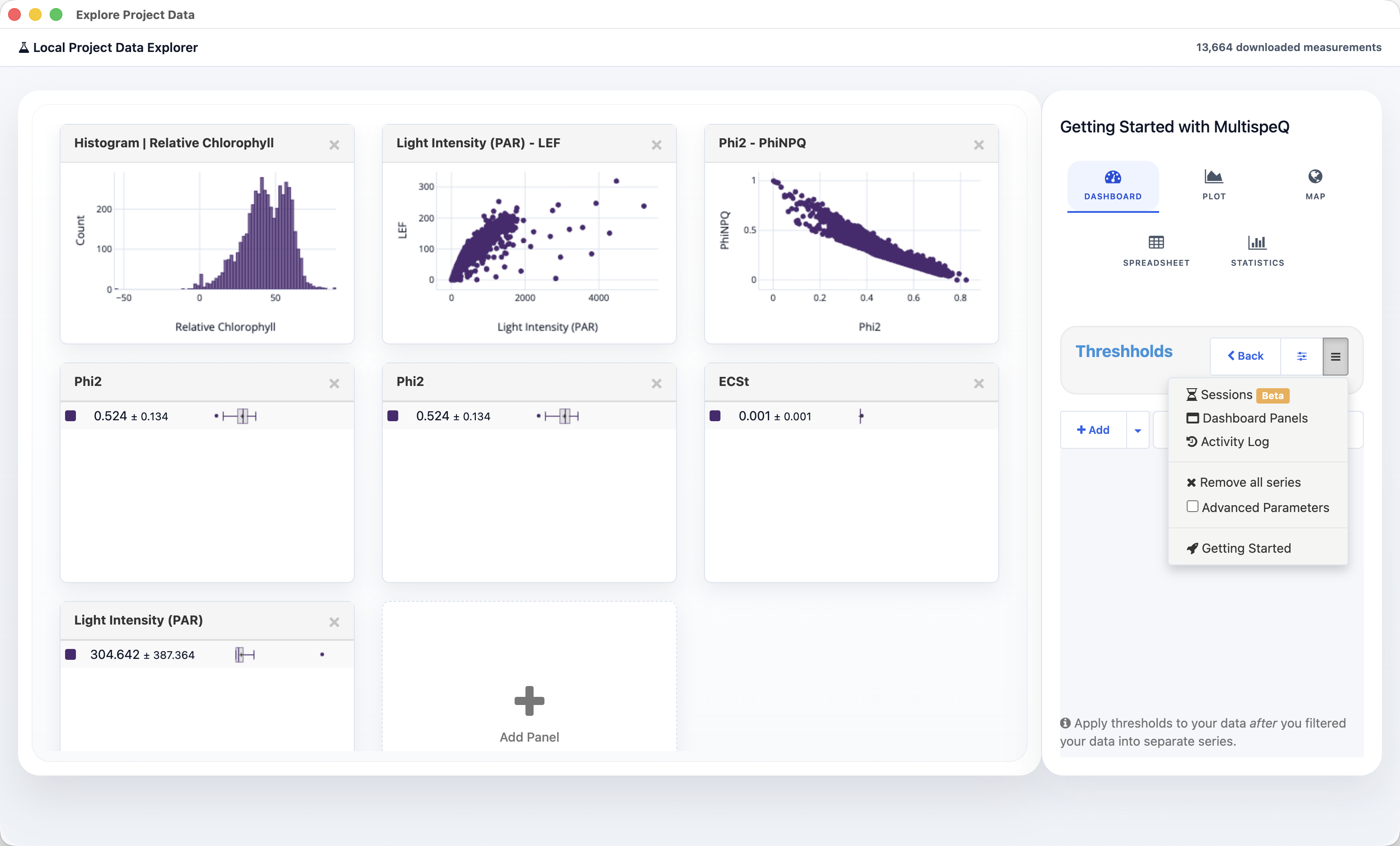
# 2. Create Comparable Series
A Series is a filtered subset of the Project dataset. Build Series from Project Question answers, users, instruments, dates, or combinations of those fields.
Use Series to compare predefined groups such as treatments, controls, blocks, genotypes, locations, or sampling dates. Do not create groups after looking at the outcome solely to produce a preferred result.
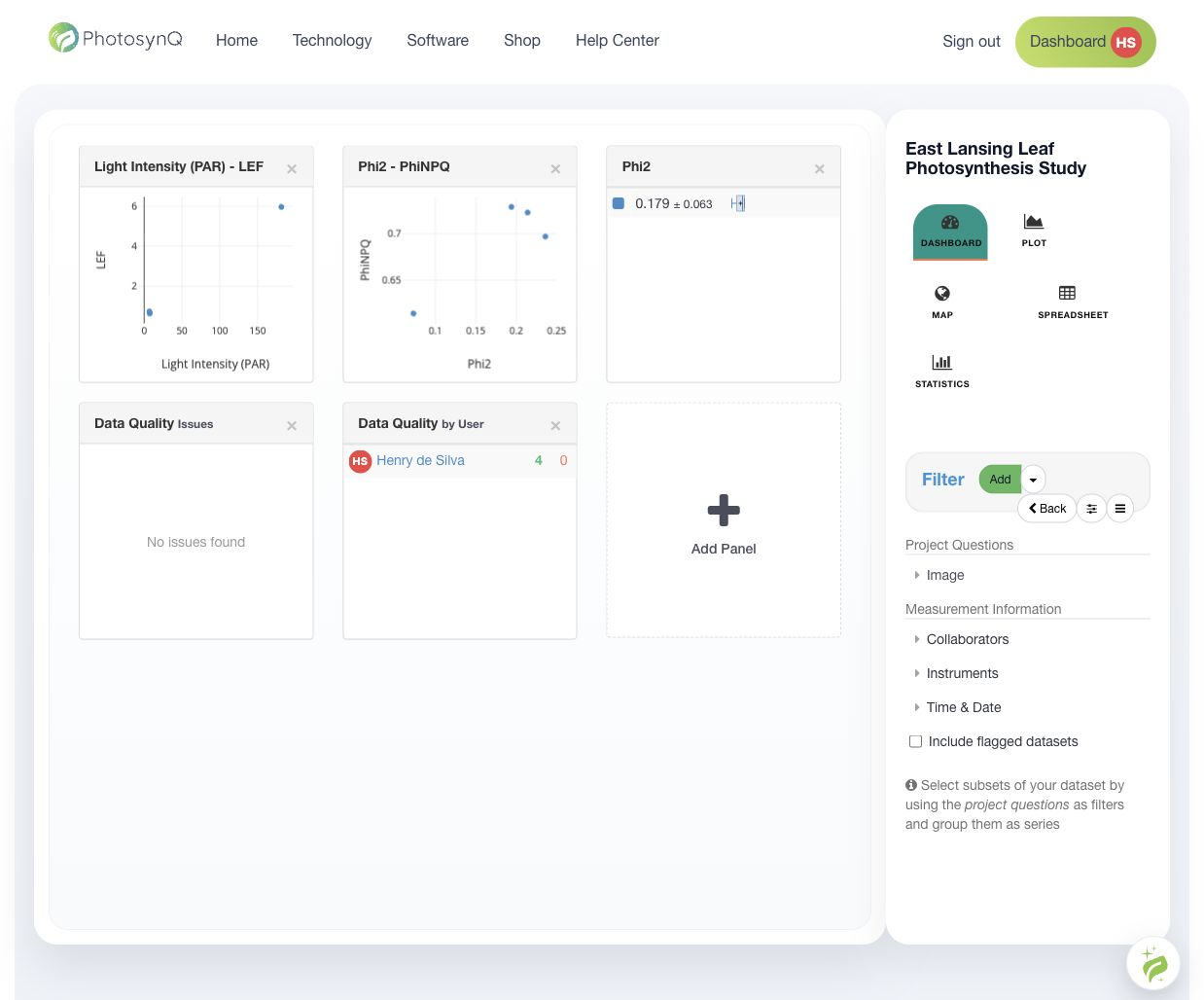
See Filter Data and Series - Data Subsets.
# 3. Inspect Distributions and Relationships
Use plots and summaries to inspect ranges, distributions, missingness, group overlap, nonlinear patterns, and possible acquisition problems.
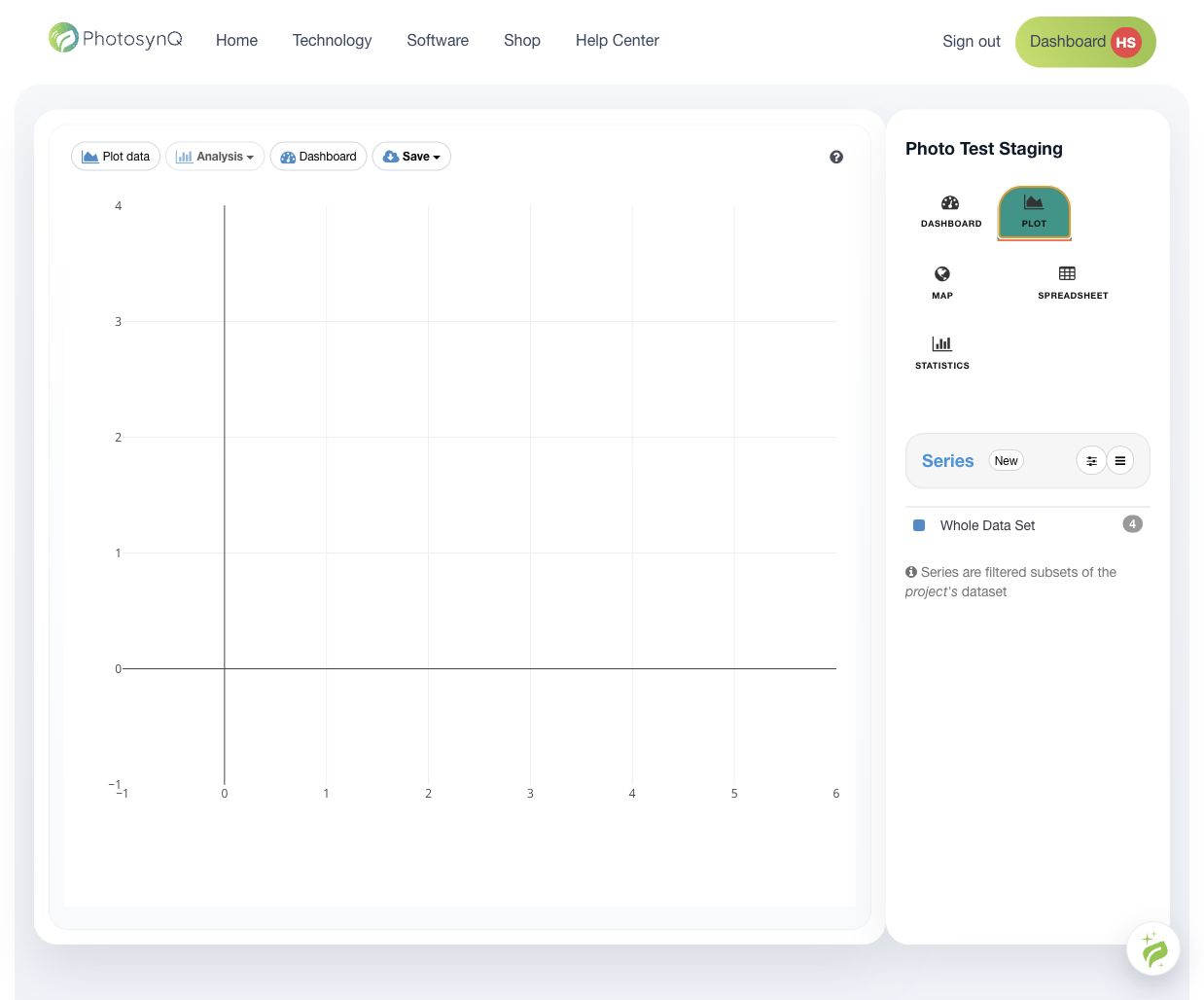
MultispeQ parameters can respond rapidly to light, temperature, leaf age, water status, time of day, and measurement technique. A visible association is not automatically a treatment effect. Interpret plots in the context of the experimental unit, sampling plan, Protocol, and environmental covariates.
# 4. Inspect Individual Measurements
Open individual records to review Project Question answers, device and user identity, location, notes, pictures, warnings, calculated values, and traces.
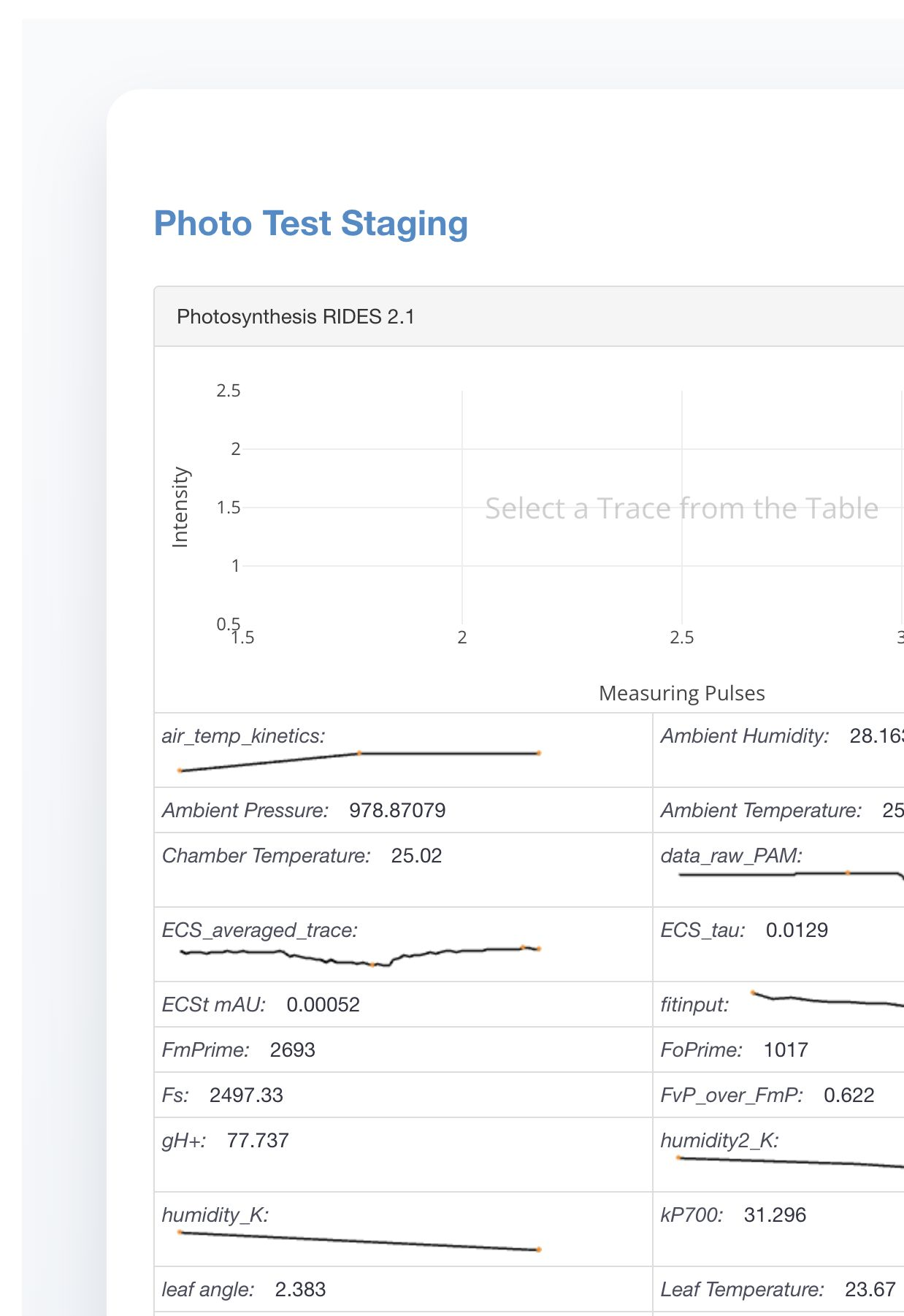
Flagging hides a record from normal analysis without deleting it. Flag only for a documented reason, retain the explanation, and use the same rule across the study. A statistical outlier is not by itself evidence of an invalid measurement.
See Data Issues and Flag Measurements.
# 5. Review Spatial Context
Use the map to check collection coverage and identify missing zones, unexpected coordinates, or environmental gradients.
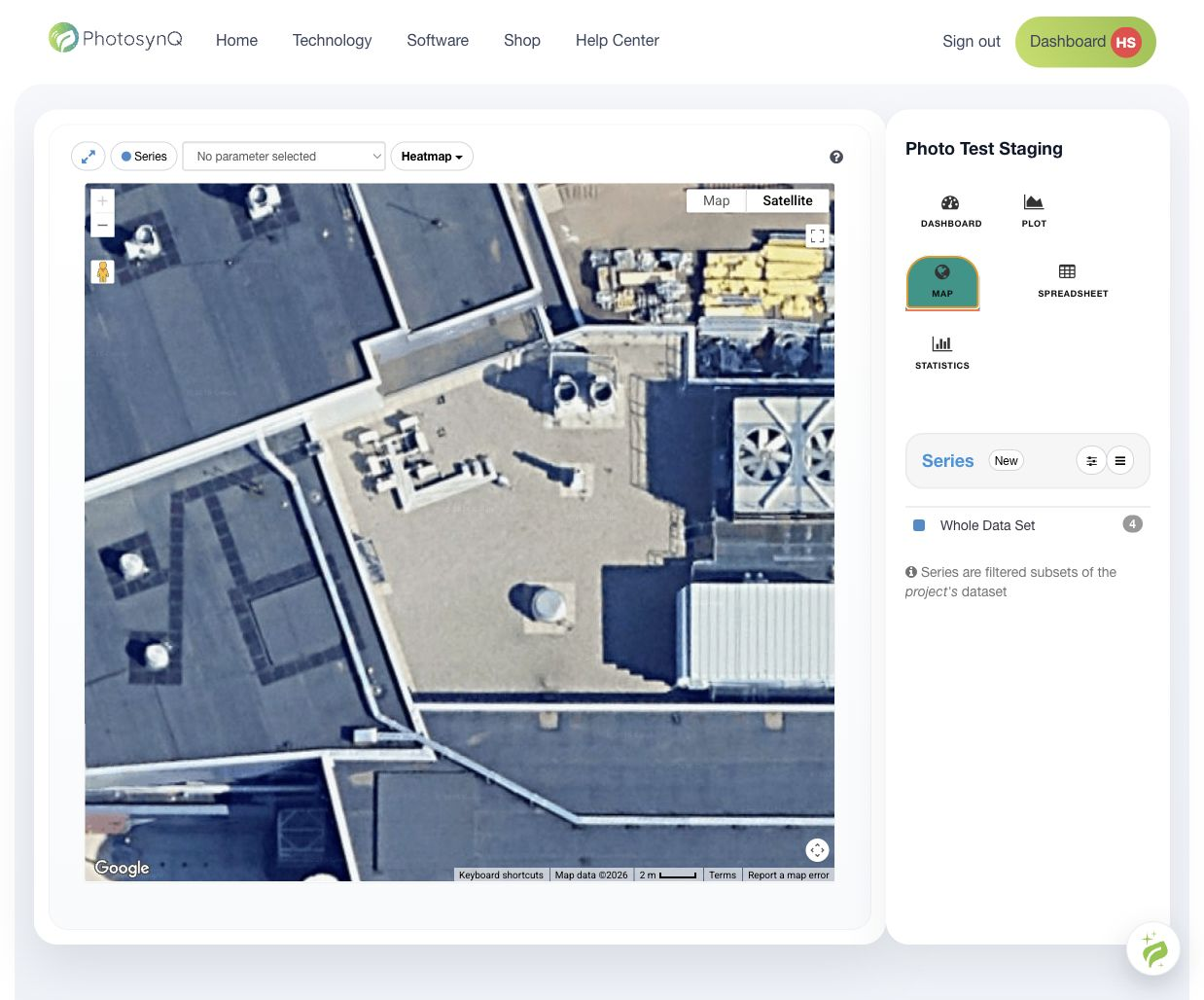
Spatially close measurements may not be statistically independent. Account for plots, blocks, sites, transects, or spatial correlation when required by the design.
# 6. Download the Data
Authorized Project-team members can download data in PhotosynQ Desktop, our recommended option, or on the website.
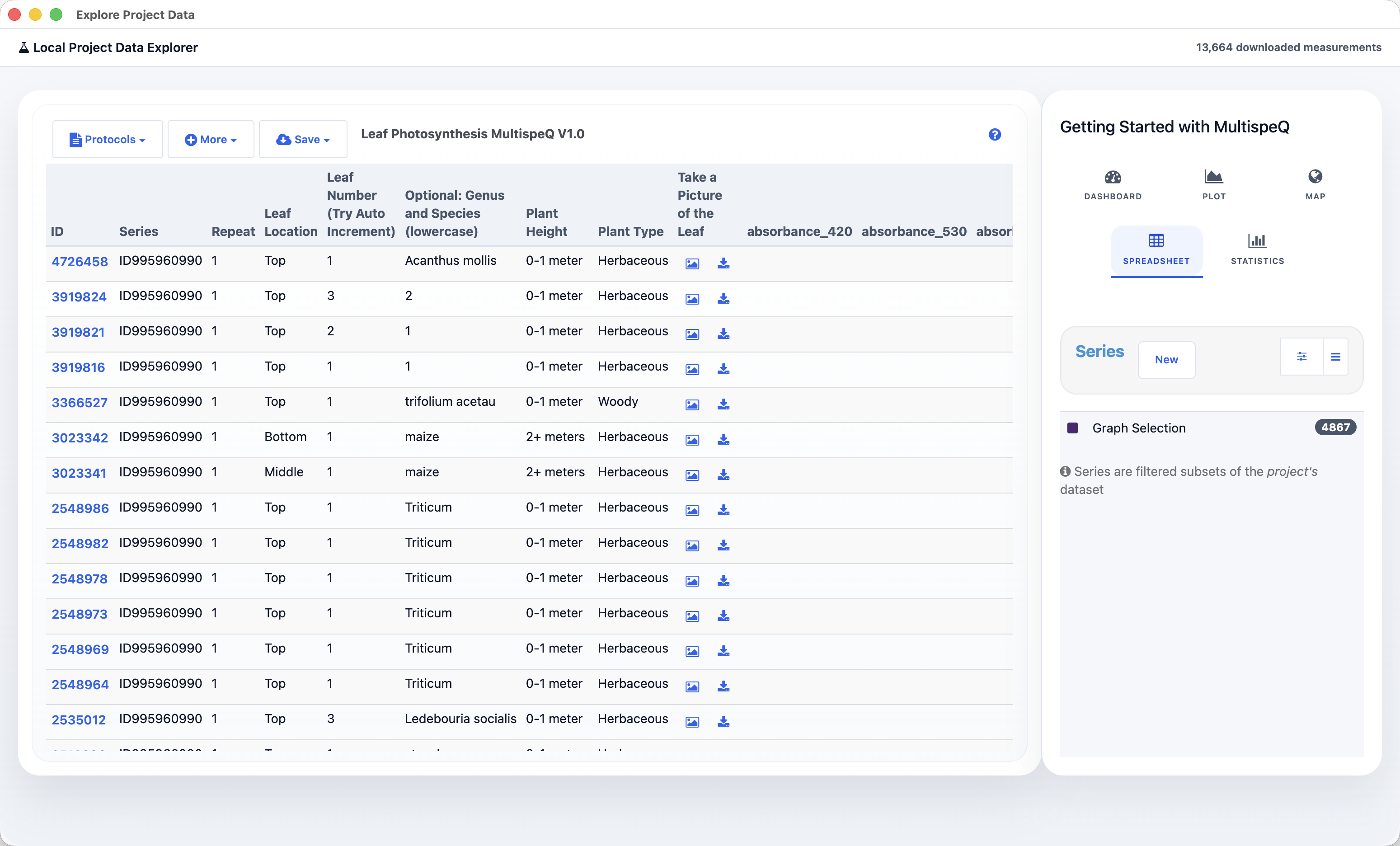
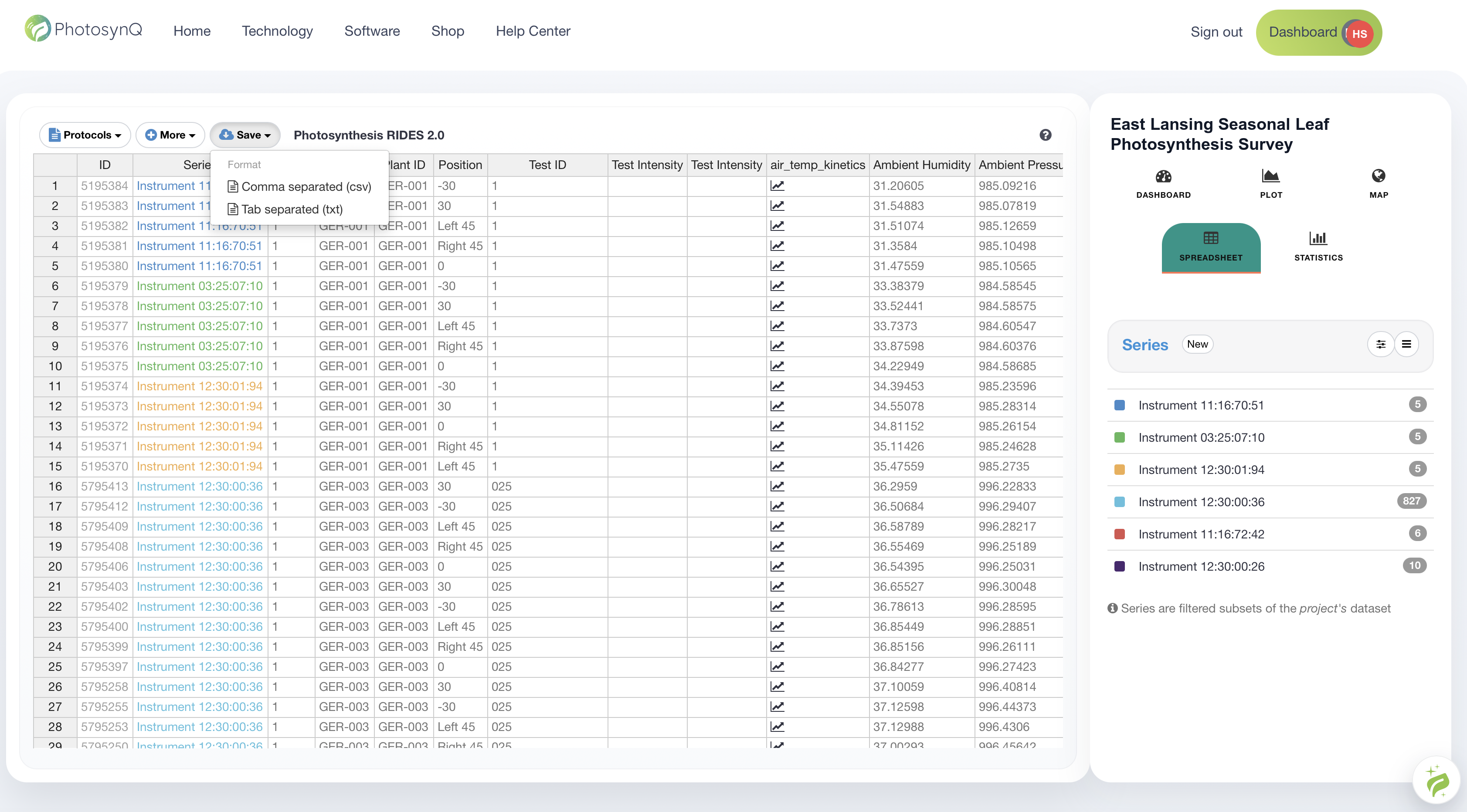
In Desktop, open the Project's Explore Project Data → Spreadsheet, choose the data and columns, then select Save for CSV or tab-separated export.
On the website:
- XLSX provides a workbook for review and common analysis tools.
- JSON preserves structured processed records and is suitable for programmatic workflows.
- The Data Explorer spreadsheet can export the currently selected data where supported.
Keep an unchanged source export with the analysis materials. Record the export date, Project ID, filters, flag rules, Protocol and Macro versions, and analysis code. See Download Data.
# 7. Choose the Statistical Model
The correct analysis follows the study design, not the software menu.
- Identify the experimental unit.
- Distinguish biological replicates from technical repeats and subsamples.
- Represent treatments, controls, blocks, repeated observations, devices, operators, dates, locations, and spatial structure where relevant.
- Check model assumptions and document transformations or exclusions.
- Report effect sizes and uncertainty, not only p-values.
Online summaries, t-tests, ANOVA, and chi-square tools can support exploration when their assumptions match the design. Designed experiments with blocks, repeated measurements, subsamples, or multiple devices often require mixed-effects, repeated-measures, hierarchical, or spatial models.
Statistical review
Do not choose a model only because it appears in an example. Seek statistical review before confirmatory analysis when the design contains dependencies or when the experimental unit is uncertain.
# 8. Continue in R or Python
Use a local analysis environment for reproducible cleaning, visualization, modeling, and reporting.
| Task | Python | R |
|---|---|---|
| Install the PhotosynQ package | View | View |
| Import PhotosynQ data | View | View |
Package compatibility and authentication behavior can change. A Project export is the most stable starting point when a legacy library no longer supports the current service.